
Overview
You will learn
- How to create a communication system and user in S/4HANA Cloud for SAP Web IDE
- How to enable this communication system for OAuth


Prerequisites
Prerequisites
- Authorizations: Your user needs a business role with business catalog Communication Management (ID:
SAP_CORE_BC_COM) in S/4HANA Cloud
Steps
Intro
This tutorial focuses on creating an OAuth communication system. To create such an OAuth communication system, you have to create an inbound user, give your Web IDE’s URL as host name, create and upload the SAP Cloud Platform Subaccount’s certificate so that the S/4HANA system trusts that.
Additional Information
- SAP S/4HANA Cloud Release (tutorial’s last update): 1902
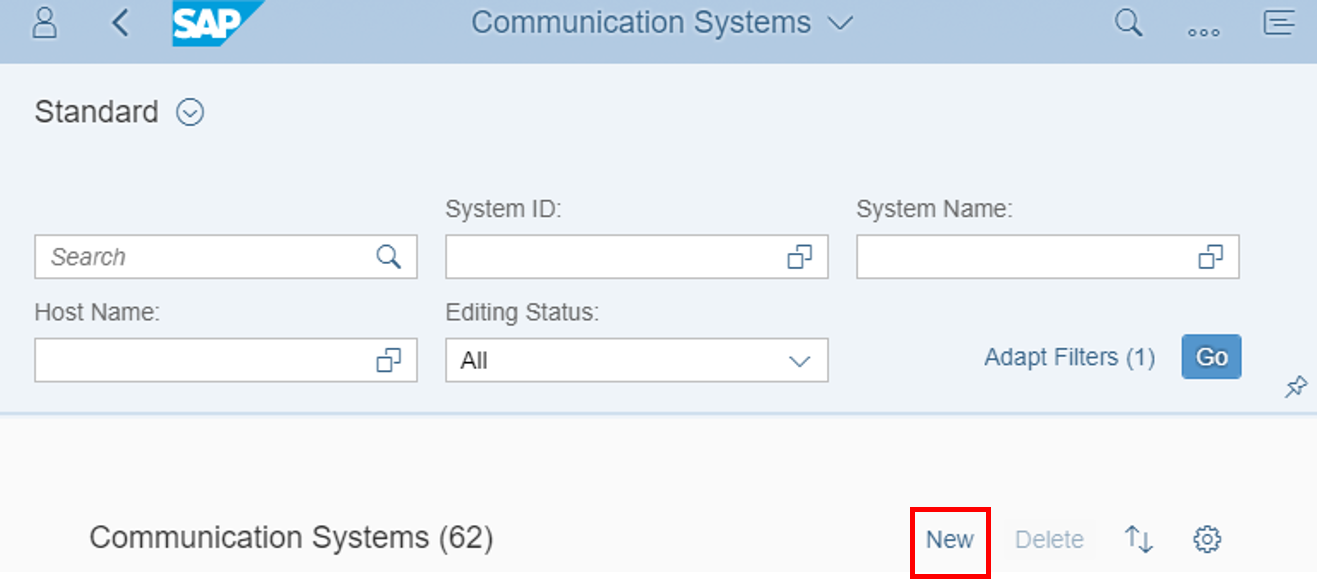
Navigate to Communication Systems tile to start the application.

Create a new communication system by clicking New.
By adding a system ID, system name and clicking Create, you are able to register a new communication system.

Switch to your SAP Cloud Platform cockpit, go to Services and select SAP Web IDE. Copy the link address of Go to Service, paste it to some text editor and remove https:// from that SAP Web IDE’s URL. This will be needed in the creation process of the communication system.

Switch back to the communication system maintenance in SAP S/4HANA Cloud system. Set SAP Web IDE’s URL without https:// that you got before as Host Name of the communication system.
Click + to add a user for inbound communication. Inbound communication means that the here defined system is used from a communication partner to call from external into the S/4HANA system. Doing this, the user that will be added next has to be used to get authorized.

Click New User to create one.

Enter a user name and description for your user. Give your user a password and click Create.

The new user will be taken as inbound communication user by clicking OK.

Switch to your SAP Cloud Platform subaccount. Open trust settings, copy all data from the Signing Certificate field ( in windows: click inside and press CTRL+a) and paste it to some text editor.

In the text editor file that you pasted SAP Cloud Platform subaccount’s signing certificate into before, add a line with value “
-----BEGIN CERTIFICATE-----” in front of the<SIGNING_CERTIFICATE>and a line with value “-----END CERTIFICATE-----” after.Swift-----BEGIN CERTIFICATE----- <SIGNING_CERTIFICATE> -----END CERTIFICATE-----Save your changes as
.cerfile.
Go back to your SAP S/4HANA Cloud system and open your created communication system draft. Edit your draft and enable it for OAuth 2.0 by checking the Enabled box. Then upload the certificate by clicking Upload Signing Certificate. Take the value of the CN attribute of the Signing certificate subject - that appears after upload - and enter it as the Provider Name. Click Save.

With this step, you’ve uploaded your certificate to your communication system. Now your S/4HANA system trusts your SAP Cloud Platform subaccount.
Resources
Discussion
Share feedback on this tutorial or join the conversation in SAP Community.