
Overview
You will learn
- How to access your SAP BTP global account
- How to use boosters to get started with SAP AI Core and SAP AI Launchpad


Prerequisites
Prerequisites
- A BTP global account If you are an SAP Developer or SAP employee, please refer to the following links ( for internal SAP stakeholders only ) - How to create a BTP Account (internal) SAP AI Core If you are an external developer or a customer or a partner kindly refer to this tutorial
- A BTP global account, For more details, refer to: BTP global account
Steps
Intro
About SAP AI Core and SAP AI Launchpad
SAP AI Core and SAP AI Launchpad are services which you can link to your BTP global account. SAP AI Core offers a powerful AI runtime which is natively integrated with SAP AI Launchpad. The launchpad offers an easy-to-use interface to manage AI workflow administration, processes, and tasks.
Open the SAP BTP cockpit and access your global account.

Check the entitlements for your account by clicking Entitlements and searching for SAP AI Core.
Click Configure Entitlements > Add Service Plans.


Select SAP AI Core and the Standard service plan.

Save your new entitlement.

Choose Boosters from the navigation pane. Find and choose the booster for SAP AI Core from the selection.

The booster tile contains information about SAP AI Core. Click Start when you are ready.
When you start a booster, a wizard opens up which guides you through the required steps.

Choose the scenario Select Subaccount and click Next
standard plan and your subaccount in which you want to provision SAP AI Core and click Next.

Review your configuration and click Finish.

After the execution completes, follow the steps shown to navigate to your subaccount.

In the subaccount section of SAP BTP Cockpit, choose Services from the left navigation menu and Instances and subscriptions from the page.

To see the details of your new instance, click the chevron on the entry.
To create the keys that you need to access your instance, click the three dots > Create Service Key.

Enter a Key Name of your choice and click Create.


Once your keys have been created, you can view or download them at any time by locating the key and clicking the three dots and choosing from the available options.

Note: SAP AI Launchpad is optional, but is the recommended interface for use with SAP AI Core.
Configure your entitlement as before, but select SAP AI Launchpad.

Choose Boosters from the navigation pane, and then choose the booster for SAP AI Launchpad from the selection.
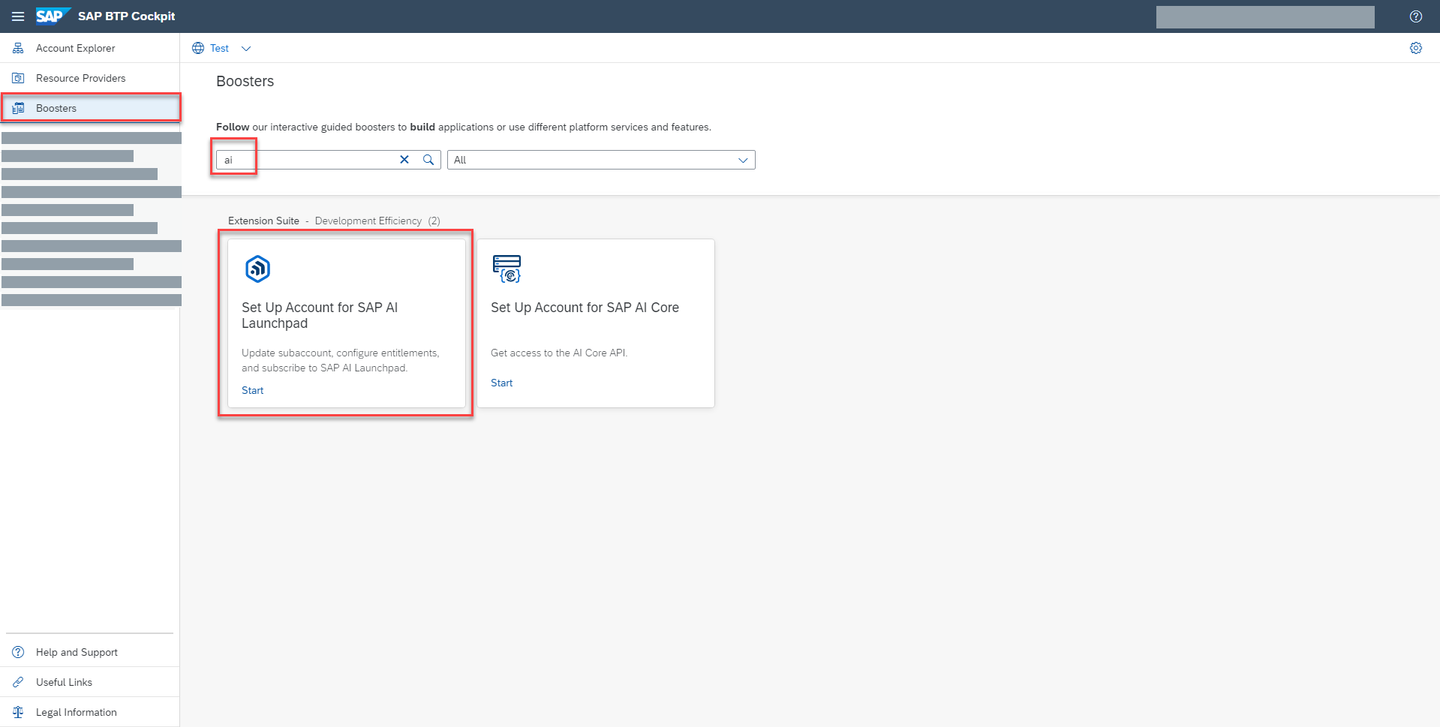
Click Start when you are ready.

In the Scenario Section, choose Select Subaccount option and click Next.
standard plan, your subaccount and space where you want to provision SAP AI Launchpad and click Next
Finish.

View your SAP AI Launchpad instance by navigating to Instances and subscriptions. To see the details of your new instance, click the chevron on the entry.

Resources
Discussion
Share feedback on this tutorial or join the conversation in SAP Community.